Ask Your Assistant About Your Tracking Data
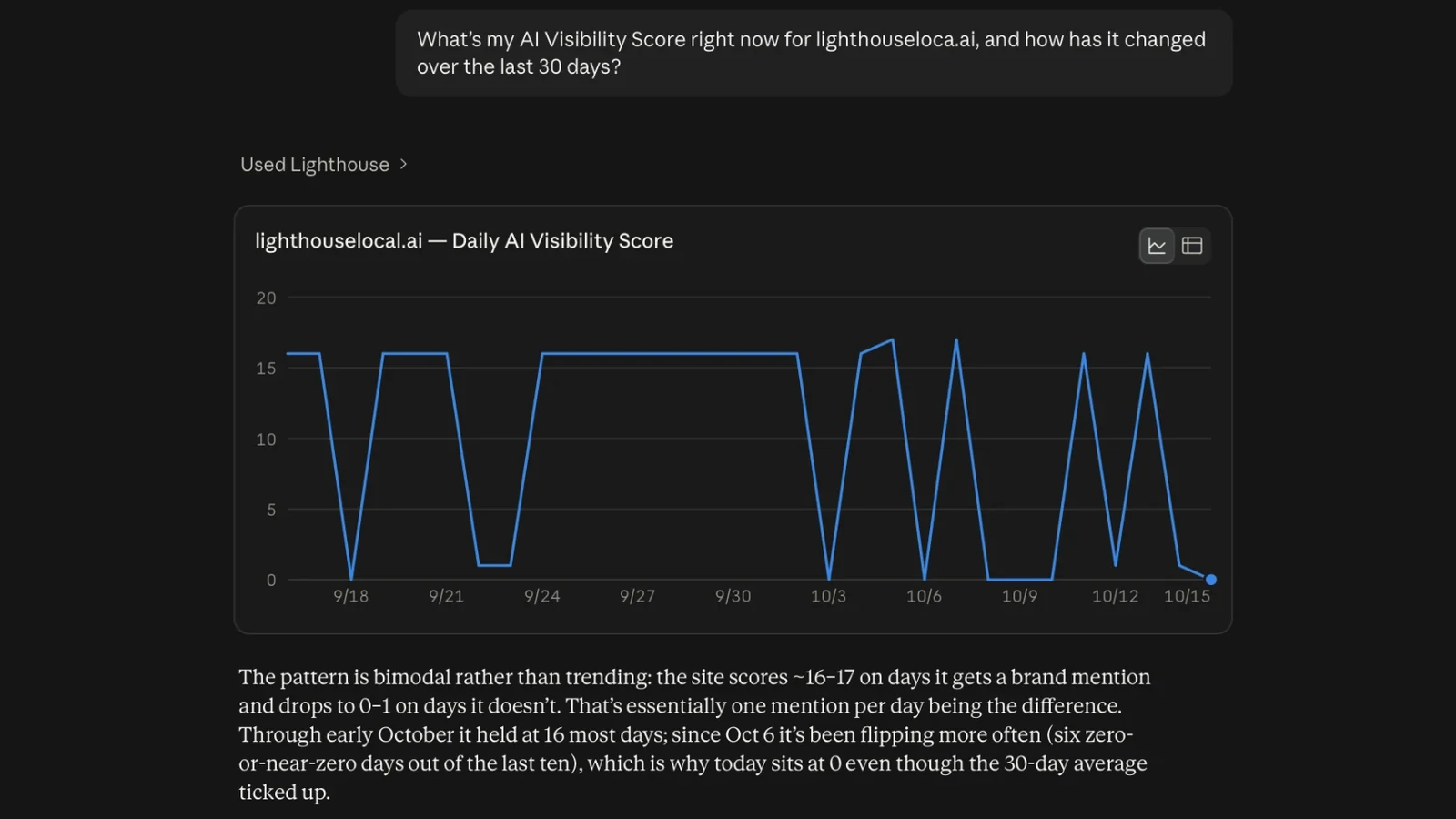
Lighthouse Local now has a read-only MCP server. Connect it to the AI assistant you already use and ask about your tracking data in plain words, the way you'd ask a marketing person. The chat at the top of this post is one of ours, Claude reading our own site's score through the connection.
A few of the questions it answers today.
- Where does my AI Visibility Score stand today, and is it up or down from last month?
- Which tracked questions name my business in the answer, and which skip it?
- Which questions send the customer to a competitor instead of to me?
- What should I fix first, and why does it matter?
It works in ChatGPT, in Claude, and in the Gemini web app. Setup takes about five minutes and uses the Lighthouse Local login you already have.
What It Reads
Our MCP server exposes fifteen read-only tools, one for each page of your dashboard. Your assistant reads the same numbers our AI visibility tracker shows on each page, on the same refresh schedule.
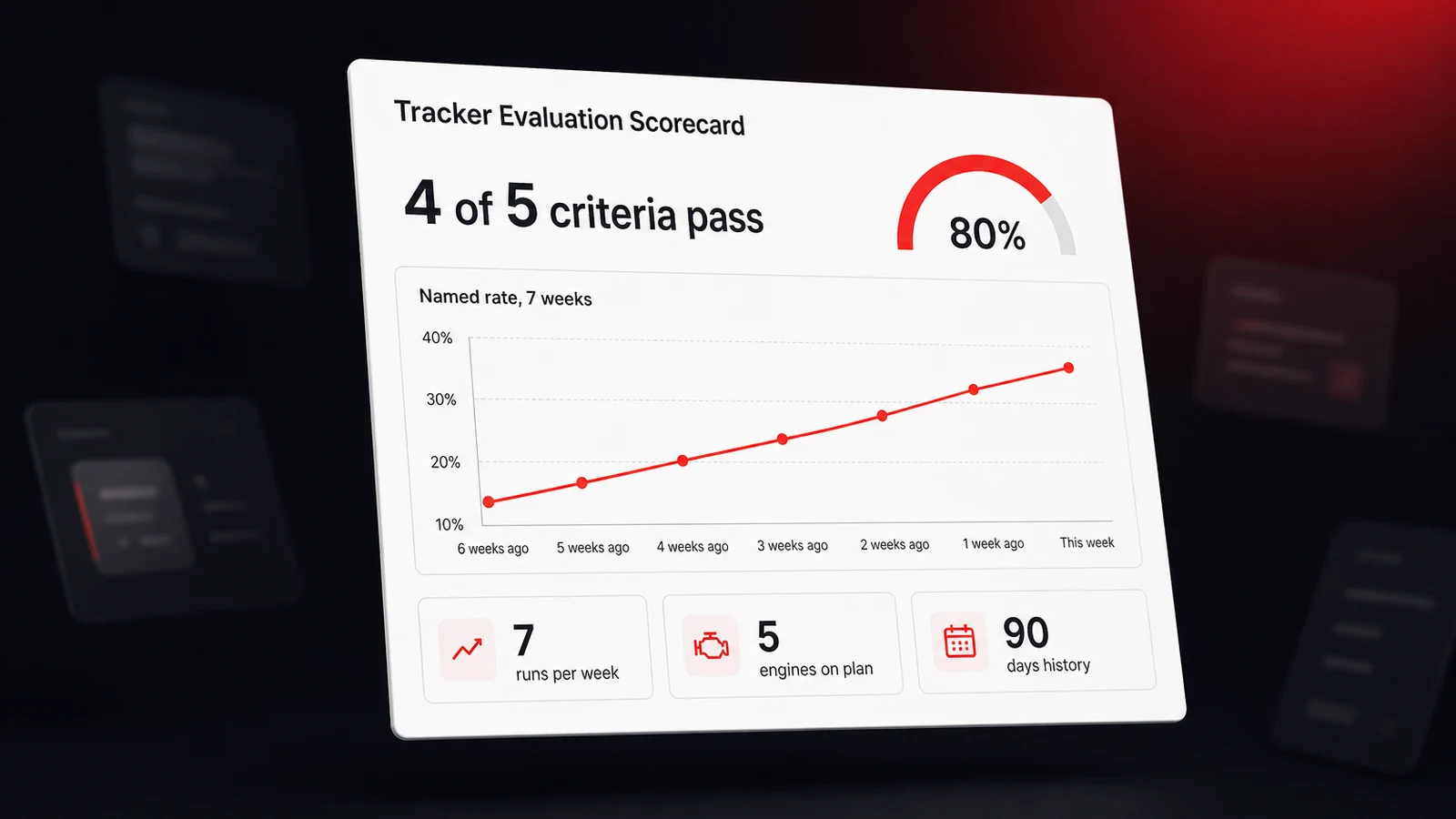
- Overview. Your AI visibility score over 7, 30, 90, or 365 days, the change against the previous period, and the day-by-day trend.
- AI Answers. Every tracked question, which assistants named or cited you, and the full text of each captured answer with its sources.
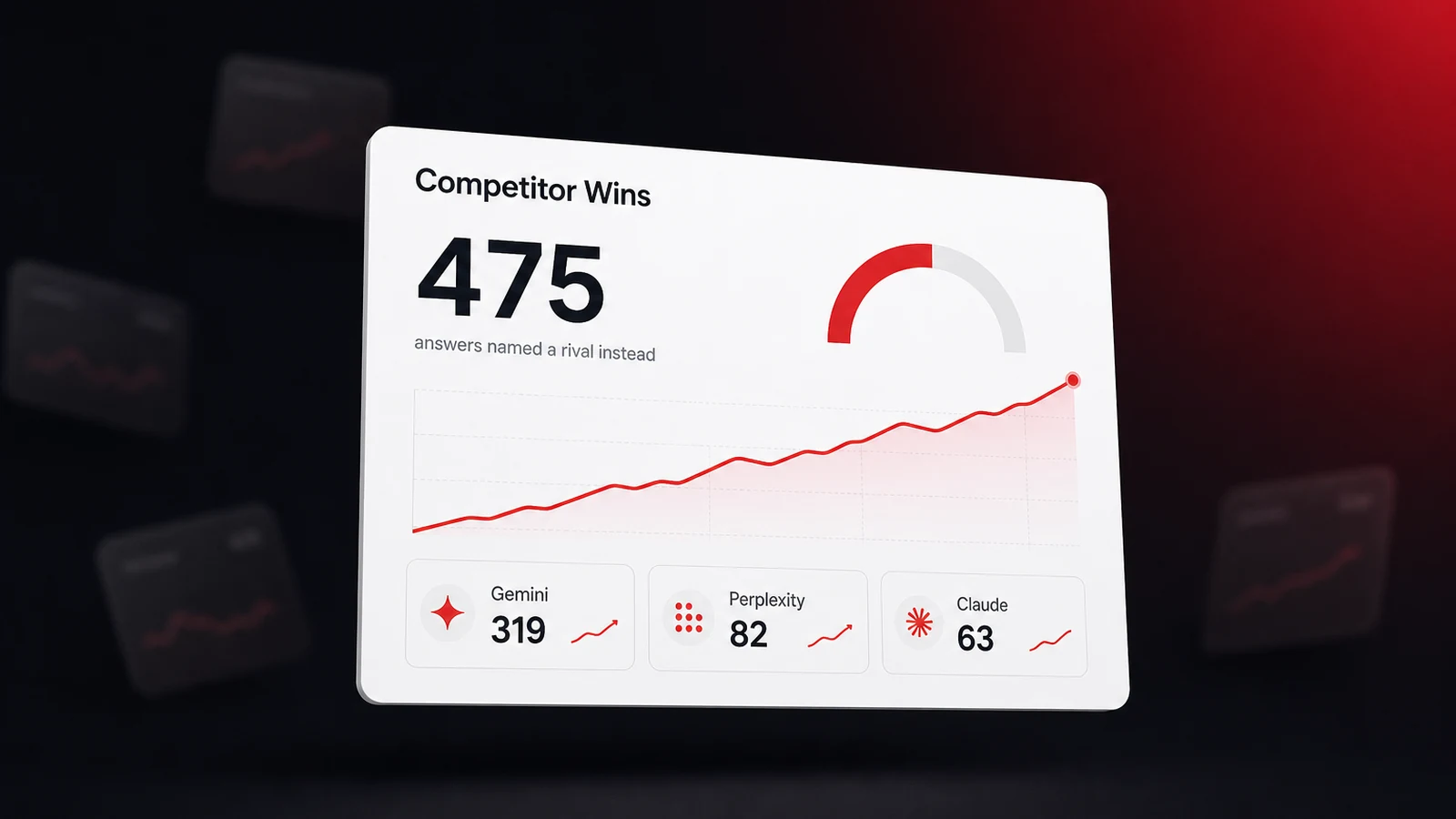
- Competitors. Who you track, which assistants name each of them per question, and the questions a competitor wins while you're missing.
- Sources. The websites AI answers cite for your questions, ranked by how often they come up.
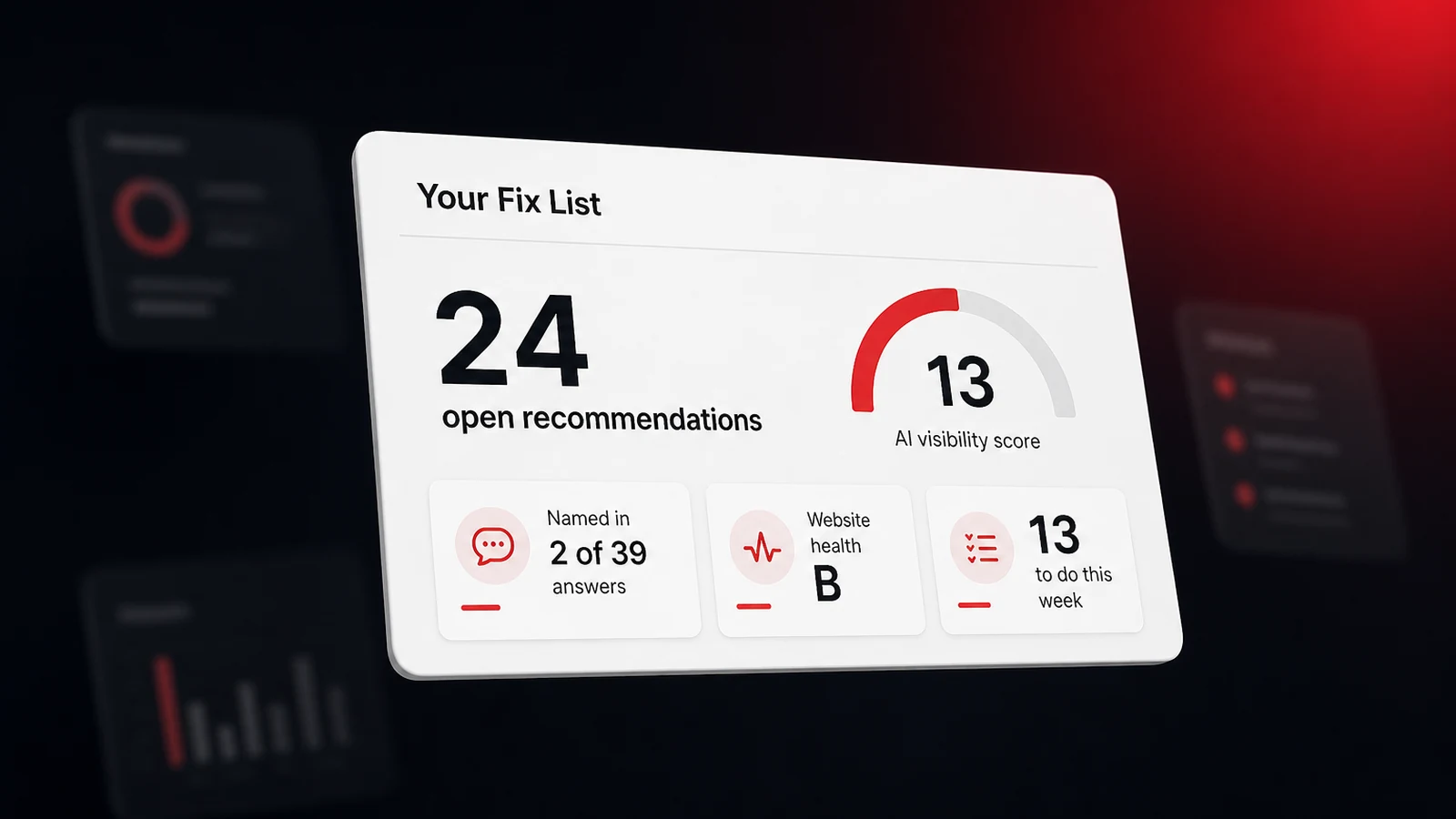
- Recommendations. Your open fix list, most impactful first.
- Website Health, Keywords, and Online Presence. Your health grade and history, your Google keyword rankings, and your Google Business Profile and review summary.
Three things it never does. It never changes anything, because every tool can only read. It never sees your password, because you sign in on a Lighthouse Local page and the assistant gets a time-limited pass. And it never reaches outside the organization you signed in with, so an agency with several client organizations connects once per organization.
Get Started
Open Settings, then AI Assistants in Lighthouse Local and copy your connection link.
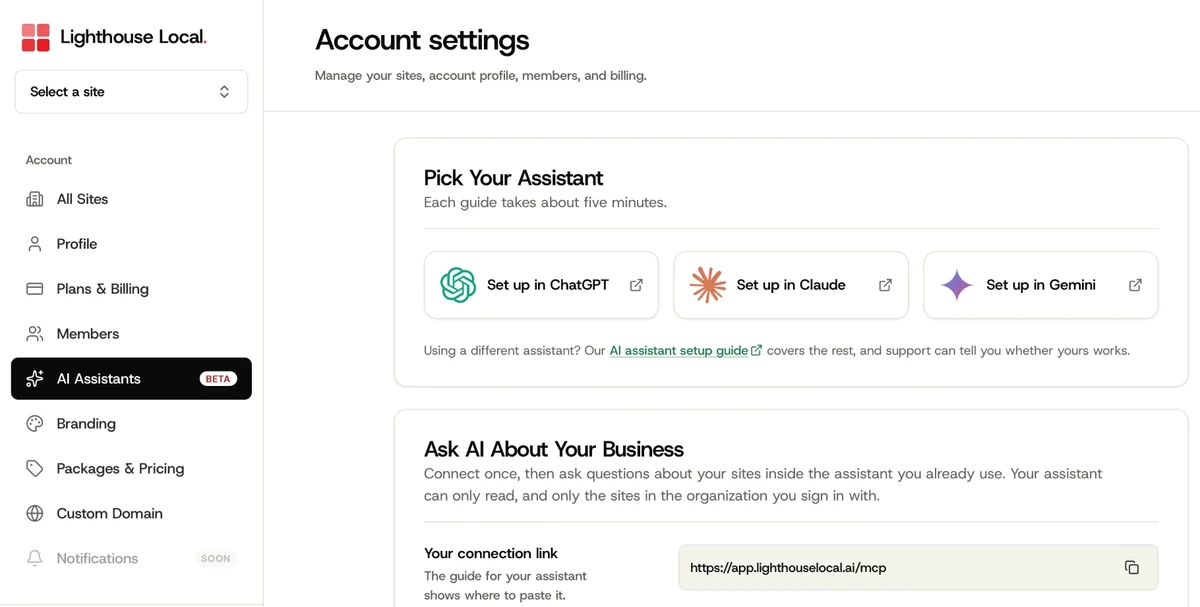
Then paste the link where your assistant keeps its connections. Each guide has the exact clicks and the fixes for the problems we've seen so far.
- ChatGPT. Connect ChatGPT to Lighthouse Local. Needs a paid plan with developer mode turned on.
- Claude. Connect Claude to Lighthouse Local. Works on every plan, including Free.
- Gemini. Connect Gemini to Lighthouse Local. Personal Google Accounts in the US, in the web app.
Once you're connected, start with one of the 25 questions to ask your AI assistant, each with a copy button. Our walkthrough on using ChatGPT to build your fix list shows where that leads once the questions turn into work. If you use a different assistant that supports MCP, email support@lighthouselocal.ai with its name and we'll tell you whether it works.
Frequently asked questions
Does the assistant need my Lighthouse Local password?
No. You sign in on a Lighthouse Local page inside the assistant's setup flow, and the assistant gets a time-limited pass for the organization you picked. Disconnect any time from the assistant's settings.
Can the assistant change anything in my account?
No. Every tool is read-only. It can read scores, tracked questions, full answers, competitors, cited sources, recommendations, website health, keyword rankings, and online presence, and it can't add, edit, archive, or delete any of them.
Does the MCP server cost extra?
No. It's included on every Lighthouse Local plan, including the free trial. Your connection link is on the AI Assistants page under Settings.